





Why Do WiFi Backup Cameras Disconnect?
There are several possible reasons why a WiFi backup camera may fail to maintain a stable connection. Here are some common factors:
- Low Battery: Insufficient battery power can cause the camera to stop working properly.
- Weak WiFi Signal: The camera may be too far from the router, or the signal might be obstructed.
- Network Interference: Other electronic devices or nearby WiFi networks could interfere with the signal.
- Software Issues: VPNs on your phone, permission settings, or firmware problems may lead to connection failures.
- Device Compatibility: There could be compatibility issues between the camera, router, or smartphone.
- Environmental Factors: Physical barriers such as walls or metal objects or the camera being outside the vehicle's transmission range can affect the connection.
How to Fix WiFi Backup Camera Connection Issues?
-
Check the Camera’s Battery Ensure the camera has sufficient battery. For the first use, it is recommended to charge the camera for 3-4 hours.
If the camera has a battery indicator, make sure at least 2-3 lights are on to indicate sufficient power.
-
Check the WiFi Connection In your phone’s WiFi settings, check if the camera’s hotspot (e.g., “WFS xxxxxxx”) is available in the list of available networks.
If the hotspot does not appear, try restarting the camera or reconfiguring the WiFi connection.
-
Turn Off VPN or Other Interfering Software A VPN or similar software on your phone may interfere with the camera’s connection. Make sure these features are turned off.
-
Check App Permissions Ensure that the camera app (e.g., INSEECam) has the necessary permissions, such as network access, photo, and microphone permissions.
-
Optimize the Camera's Distance from Devices Ensure that the camera is within a reasonable distance from your phone or router. Generally, WiFi backup cameras work within 30 feet (about 9 meters) of a vehicle, but the actual transmission distance may vary depending on the environment.
-
Boost the WiFi Signal If the camera is far from the router, try moving the camera closer to the router, or use a WiFi extender to enhance the signal.
Avoid placing the camera near metal objects or thick walls, as these can weaken the signal.
-
Restart the Devices Restart both the camera and the router to refresh the connection and resolve temporary issues.
-
Update the Firmware Check if there are any firmware updates available for the camera. Manufacturers often release updates to fix known issues.
-
Reduce Network Interference Change the WiFi channel on your router to reduce interference from other devices or neighboring networks.
Try to minimize the number of devices connected to the same network to reduce the network load.
-
Reset the Camera If the issue persists, try resetting the camera to factory settings and reconfiguring it.
-
Test with Other Devices Try connecting the camera using a different phone or tablet to rule out compatibility issues with your current device.
-
Contact Customer Support If none of the above methods resolve the issue, it’s recommended to contact the customer support team of the camera brand for professional assistance.
Preventive Measures: How to Avoid WiFi Backup Camera Connection Problems?
- Charge Regularly: Ensure that the camera always has sufficient battery power.
- Optimize the Installation Location: Install the camera in a spot with strong signal reception and no obstructions.
- Update Regularly: Keep the camera’s firmware and app versions up to date.
- Choose the Right Router: Use a router that supports dual-band (2.4 GHz and 5 GHz) and configure it according to the camera’s supported frequency.
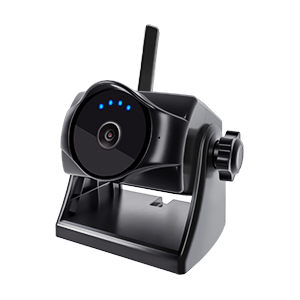 |
1080P Solar Magnetic Wireless Backup Camera The magnetic WiFi backup camera is wireless with true-to-life colors, HD 1080P image quality, and a strong magnetic bracket. It comes with excellent night vision, smart power-saving mode, and up to 90-day standby time…… |
 |
1080P Solar WiFi Magnetic Backup Camera 1080P Solar Wireless Backup Camera, Magnetic WiFi Hitching Camera, Night Vision, 365 Days Standby, Rechargeable Battery, Rear/Front View for Horse Trailer Pickup RV Car for Phone Pad Android |
WiFi backup camera connection instability is a common but solvable issue. By checking the battery, optimizing the WiFi signal, turning off interfering software, and following the above steps, most users can easily restore the camera’s stable connection. If the problem persists, try resetting the device or reaching out to customer support. We hope this article helps you use your WiFi backup camera more effectively and enjoy the convenience of smart living!
If you have any other questions or experiences to share, feel free to leave a comment and discuss with us!
This version specifically uses a "WiFi backup camera" throughout, keeping the meaning and structure consistent while aligning with your request.