Whether you're setting up a new security camera, troubleshooting Wi-Fi issues, or optimizing your home network, accessing your router settings is essential. In this guide, we’ll cover:
✅ How to access router settings from a web browser
✅ How to manage your router from your phone
✅ How to find your router’s IP address
✅ Troubleshooting common router login issues
✅ Top recommendations for Wi-Fi security cameras (including solar-powered, dual-lens, and indoor pet cams)
Common default IPs:
192.168.1.1 (Linksys, Netgear, ASUS)
192.168.0.1 (D-Link, TP-Link)
If these don’t work, check the label on your router or follow the IP address lookup guide below.
Open Chrome, Firefox, or Safari.
Type the IP (e.g., http://192.168.1.1) and press Enter.
The default login is often admin/admin or admin/password.
If forgotten, reset the router (hold the reset button for 10-30 sec).
Once logged in, you can adjust Wi-Fi settings, security, and port forwarding.
Connect to your Wi-Fi.
Open Chrome/Safari and enter the router’s IP (e.g., 192.168.1.1).
Log in with admin credentials.
Popular apps:
Google Home (Google Nest Wifi)
TP-Link Tether (TP-Link routers)
ASUS Router App (ASUS models)
These apps simplify Wi-Fi management, parental controls, and security.
Open Command Prompt (Win + R > type cmd).
Type ipconfig and check Default Gateway.
Go to System Preferences > Network > Advanced > TCP/IP.
The Router field shows your IP.
Use Fing (Network Scanner) or check Wi-Fi settings.
🔹 Can’t Access the IP? → Check Wi-Fi connection, try a different browser, or restart the router.
🔹 Forgot Password? → Check the router’s label or factory reset.
🔹 IP Not Working? → Some ISPs (like Xfinity) use custom gateways—check their support page.
A stable router is crucial for security cameras. Here are four top-rated Wi-Fi cameras for different needs:
📌 Key Features:
✔ 2K resolution + PTZ + floodlight
✔ Solar-powered (5W panel + battery backup)
✔ Human detection, siren alarm, 2-way talk
✔ 98ft night vision
💡 Best for: Outdoor security with no wiring hassle
📌 Key Features:
✔ Dual-lens (wide-angle + zoom)
✔ 355° pan, 90° tilt + auto-tracking
✔ Human detection, 24/7 recording
✔ IP66 weatherproof
💡 Best for: 360° surveillance with smart tracking
📌 Key Features:
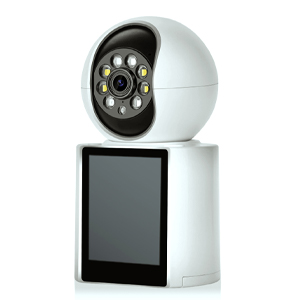
✔ 2K resolution + built-in IPS display
✔ One-button video calling (baby/elder/pet monitoring)
✔ Cry/sound/human detection
✔ Color night vision
💡 Best for: Indoor baby/pet monitoring with instant calls
📌 Key Features:
✔ Auto-tracking + 2.4/5GHz dual-band Wi-Fi
✔ Motion detection, 24/7 recording
✔ 2-way audio, night vision
💡 Best for: Pet tracking & indoor home security
Accessing your router settings helps optimize Wi-Fi for security cameras. For wireless outdoor coverage, the solar-powered 4MP cam is a great choice. If you need indoor monitoring, the 2.8-inch screen camera is perfect for pets/babies.
🔌 Pro Tip: If your cameras lose connection, check your router’s signal strength and consider a Wi-Fi extender for better coverage.
Have questions? Drop them in the comments! 🚀
Copyright © 2023 INSEETECH LIMITED. All Rights Reserved.